So you woke up on Christmas morning and found a shiny new iPhone under the tree, maybe your significant other gifted you with one or you decided to spend your Christmas bonus on a little something for you – and that little something was an iPhone. Yay! Now what?
If you’re an Android phone user you may be filled with a tiny bit of panic. Our phones store a big chunk of our lives – our contacts, our photos and everything else that has ended up on there. You don’t want to lose that stuff! Here’s how to move from Android to iPhone without losing your important information:
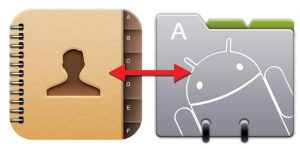
1. There’s a good chance if you’re using an Android phone you’re utilising Google. Back up the Google app on your Android device, sync the account. It’ll save your contacts & NB info. On your iPhone just load the Google app, fill in your details and sorted.
2. Sync Facebook and Twitter on your Android phone. Then download the Facebook and Twitter apps on your iPhone. iOS 8 will pull contact details and the like from these social media platforms.
3. Moving your music is easy if you use Google Play Music. Just get the app for your iPhone and it will immediately give you access to your music. If you want the music on the iPhone’s music app this is a little bit tricky. You’ll need to get the music off your Android and on to your Mac or Windows PC (USB cable and copy & paste is the easiest). You’ll then need to import it to iTunes and sync your phone with your PC.
4. Photos are always a headache. The easiest way to get these on to your iPhone is to load them on to your PC or Mac and then reload on to your iPhone (a USB cable and some copy & paste again). Alternatively you can load the pictures up to Dropbox, Google+ Photos or Google Drive. I find the time it takes to upload and download on these cloud services far longer than just spending 10 minutes using my PC to do the transfer.
5. Move your contacts the old school way. If you don’t use Google and want to make sure you don’t lose your contacts during the move from Android to iPhone there is another way to back everything up (also a really useful way to keep a back up of your contacts anyway). Open contacts on your Android phone, go to the menu button/selection and find import/export. Select export your contacts to storage and save to your computer. Upload the file to iCloud.com. Visit iCloud.com and click the gear symbol – on the drop down go for “import vCard”. Easy!

